Motion graphics used to mean another timeline. Kinetic text, animated graphs, captions, a color grade, a tier list, a before-and-after. The effects that make a short video feel finished are usually the ones that take the longest to build by hand.
You can create those effects directly inside Claude with Higgsfield. With Higgsfield MCP, you add text behind speakers, animated graphs, tier lists, before-and-after comparisons, and more using simple commands. No switching between tools. Describe what you want, and the motion graphics land on the clip.
Before you start
- Log in to Claude in your browser. Go to claude.ai and log in to your account.
- Install and sign in to Higgsfield. Go to Customize → Connectors. Add a new connector, name it Higgsfield, and paste this URL:
https://mcp.higgsfield.ai/mcp. Or open Add Higgsfield MCP.
How to use a command
Open a Claude chat, attach your talking-head video, and send the command. That is the whole edit.
/tier-list @higgsfield
Swap /tier-list for any command below. Higgsfield reads the clip and builds the effect.
Commands
| Commands | Effect Description |
|---|---|
/text-behind | Key words from your speech appear behind your head as you say them, with your head overlapping the letters. |
/grade-wipe | The video starts with a flat, ungraded look. A band of light sweeps across the frame, revealing a cinematic color grade behind it. |
/captions | Adds captions synced to your speech, with three styles: highlighting the current word, revealing words as they are spoken, or displaying the full phrase. |
/tier-list | Builds a tier list directly in the frame. Rows follow the rankings you describe, such as S/A/B or 1/2/3. Each tool appears in its assigned row with its logo when you mention it. |
/glass-graph | When you mention a number, a glass-style panel slides into view below your chin. The number animates up to the stated value as a trend line draws across the panel. |
/freeze-frame | At each new point or introduction, the video freezes with a flash. Everything except the speaker turns black and white, and a sticker-style outline and label appear around them. |
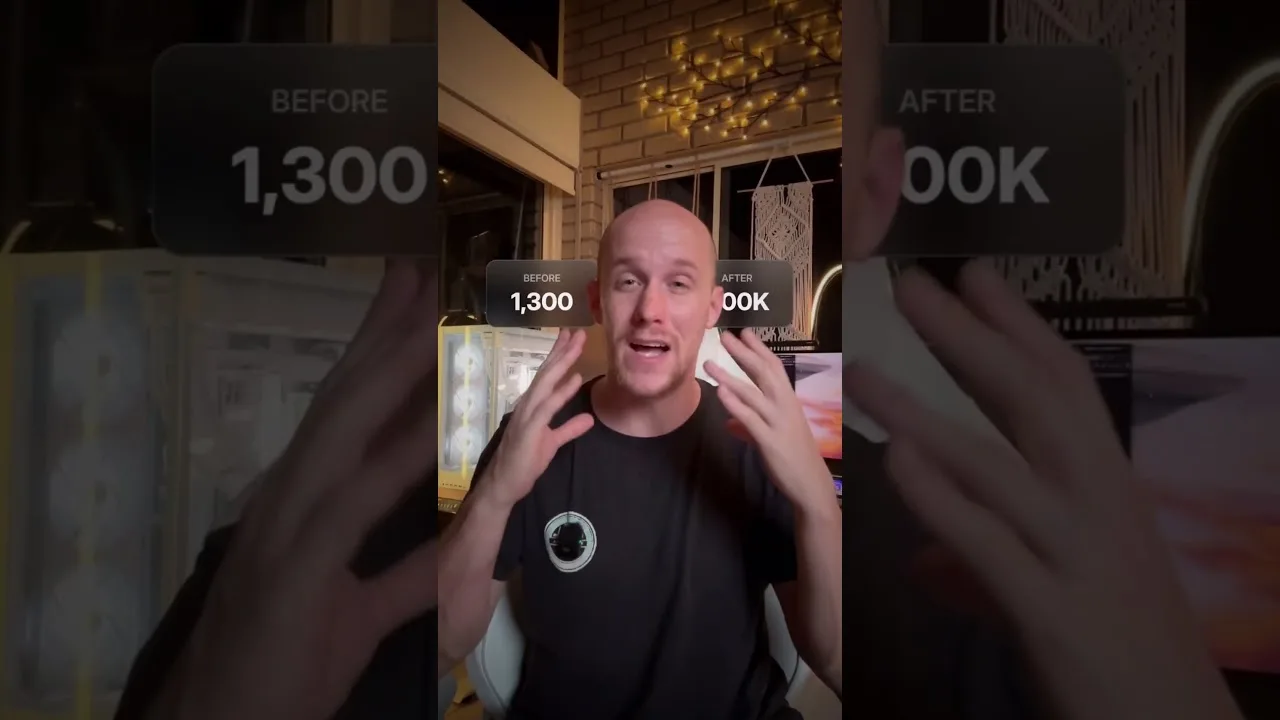
/over-the-shoulder | When you compare “before” and “after,” two cards with the corresponding numbers appear behind you, and the camera moves from one to the other. |